Saved Setups
Saved Setups in Lunar.dev MCPX lets you snapshot the current MCPX configuration, give it a name, and restore it later. A saved setup captures the MCP servers you have connected, your tool groups, permissions, authentication configuration, and tool extensions. Restoring a saved setup replaces the current configuration with the snapshot.
Use Saved Setups to keep a known-good baseline before experimenting with new servers, to switch between configurations for different projects, and to recover quickly when a change does not work out.
Where to find Saved Setups
In the MCPX control plane, open Saved Setups under Workspace in the sidebar. The page lists every setup you have saved, each one shown as a card with the description, the servers and tool groups it includes, and the date it was saved.

Saving the current setup
Click Save Current Setup in the top right of the page. Give the setup a description and click Save Setup. The setup is saved with a timestamp and appears in the grid immediately.
Restoring a saved setup
Open the setup's actions menu (the three-dot icon on the card) and choose Restore, or open the setup's detail sheet and click Restore there. MCPX shows a confirmation dialog with two options:
- Save & Restore. Save your current setup first, then restore the selected one. Recommended when you have unsaved changes you might want back later.
- Just Restore. Replace the current setup with the saved one without saving the current state.
After a restore, MCPX returns you to the dashboard with the restored configuration active.
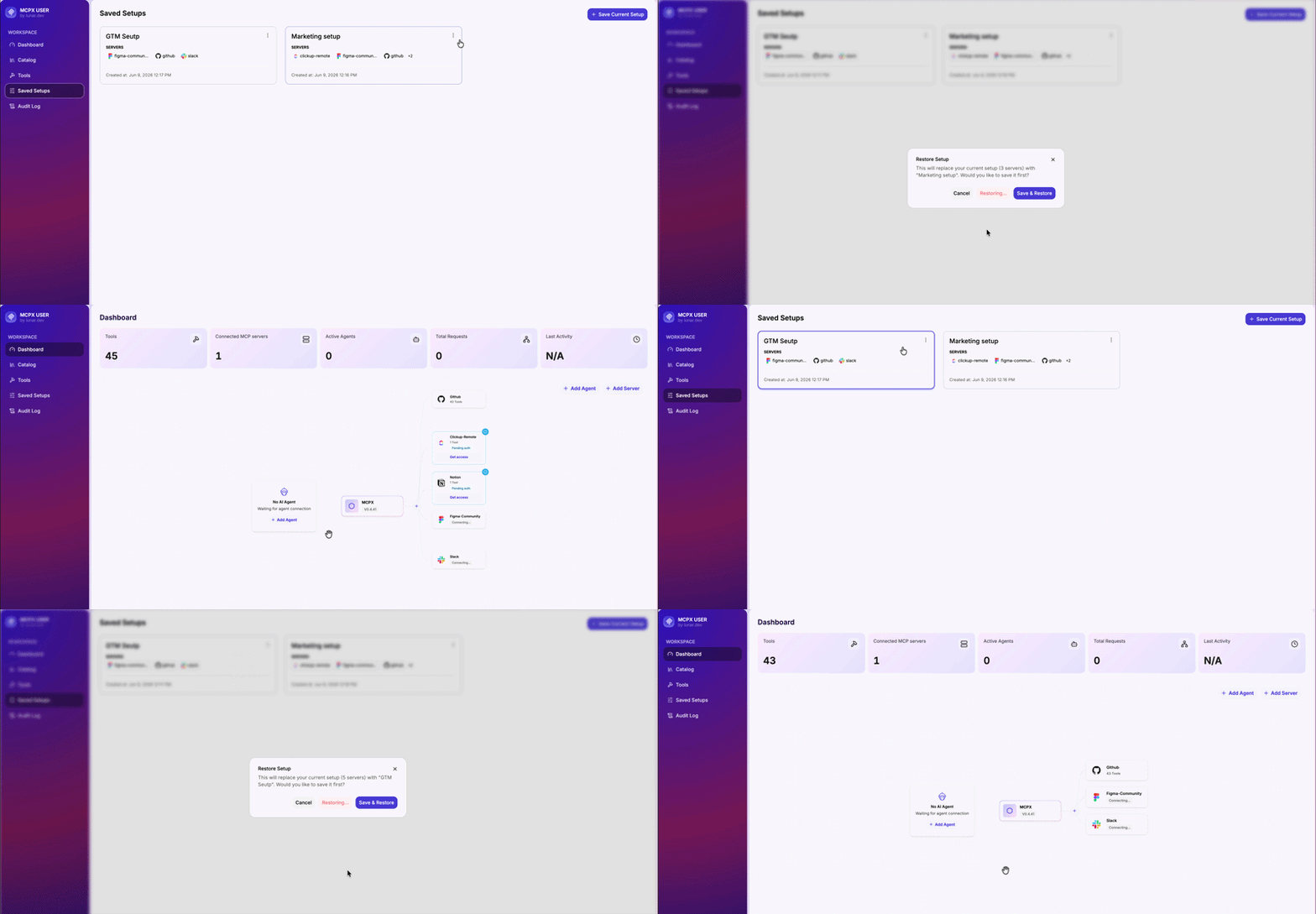
Overwriting a saved setup
Use Overwrite when you have iterated on a saved setup and want to update it with your current changes. From the setup's actions menu, choose Overwrite. MCPX confirms the action because it cannot be undone, then replaces the saved setup's contents with the current configuration. The description and timestamp are preserved.
Deleting a saved setup
Choose Delete from a setup's actions menu. MCPX confirms before deleting. The setup is removed permanently.
💡 MCPX Enterprise Feature - Saved Setups is exclusively available on our Enterprise plan.
Contact our team to book a demo and unlock this feature.